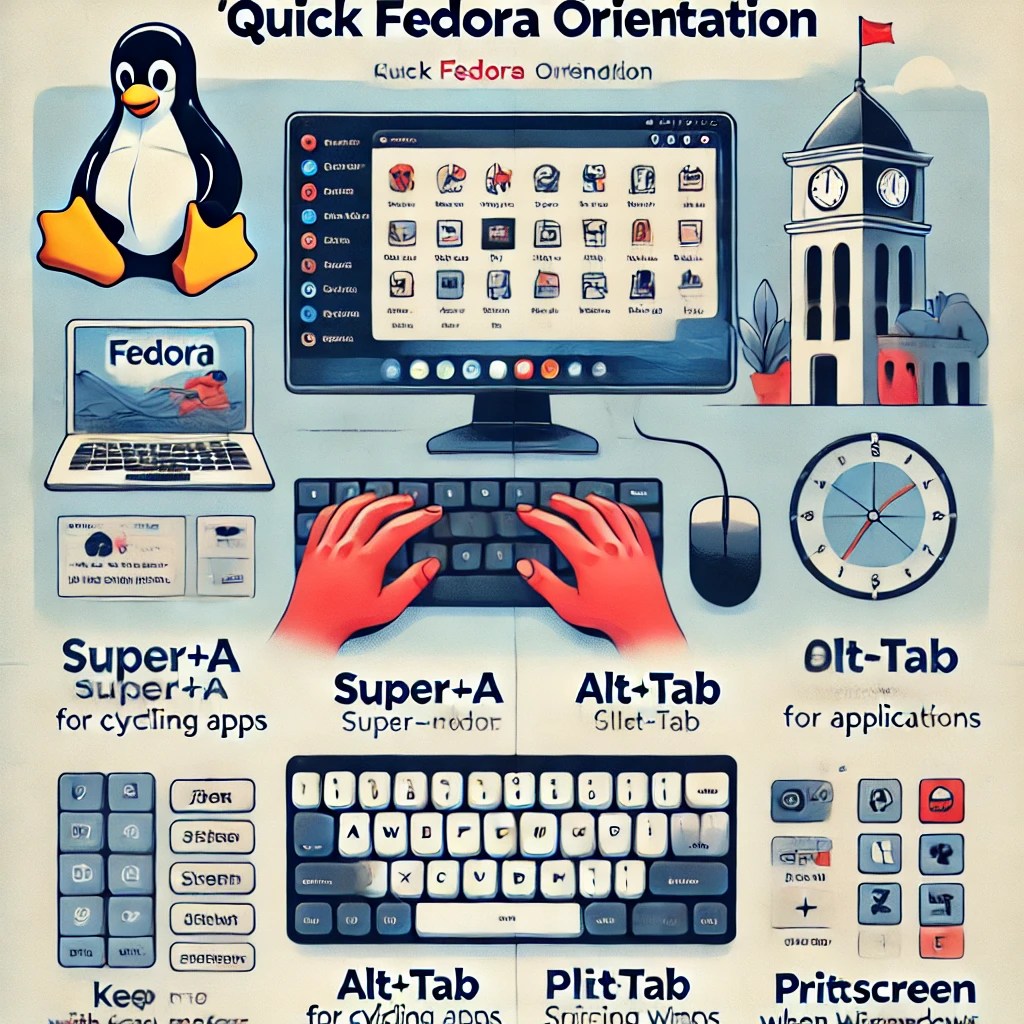
You can use the mouse to interact with the GNOME environment that Fedora provides, starting with the icons at the top left and top right.
You can also use keyboard shortcuts.
- Super (Windows key): Press to show the applications dock.
- Type a name to find a program, such as term for terminal.
- Right-click to set Preferences, such as text font and size.
- Super+A: Show applications.
- Alt+Tab: Cycle running applications.
- Alt+`: Cycle windows within application.
- Alt+F2: Run command with history.
- Alt+Ctrl+Tab: Focus top bar.
- Enter for window chooser.
- Super+L: Lock screen.
- Alt+Ctrl+Del: Power off.
- Super+V: Notifications.
- PtScr: Screen shot.
- Alt+PtScr: Screen shot window.
- Shift+PtScr: Screen shot area.
- Alt+Ctrl+Shift+R: Start/Stop recording.
At least once, a desktop machine did not seem to wake from sleep, so I disabled automatic sleep.
When I switch from Fedora back to Windows, I see that the clock has changed.
 wslguy.net
2 thoughts on “Quick Fedora Orientation”