This blog post explains how you can use the output of Windows Command Prompt commands in Bash scripts under WSL.
In Bash under WSL, I want to use the output of the tree command to list the contents of a WSL directory. Tree is unusual in a few ways: it is part of cmd.exe, not a separate executable. It depends on a Windows file system. It generates non-alphanumeric output. I haven’t explored whether the issues I faced could affect other commands. Anyway, let’s experiment with tree.
cd /tmp
mkdir dirtree
cd dirtree
mkdir childA
mkdir childA/grandChild
mkdir childB
cmd.exe /c tree # be ready to CTRL+C!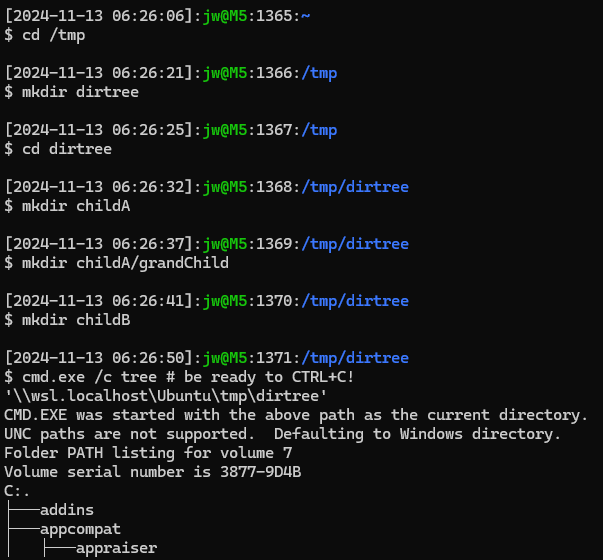
The output seems to go on forever. Two things: it says it’s not supported and it lists the contents of C:\Windows instead of /tmp/dirtree. There’s nothing like a good challenge!
Supposedly, cmd.exe supports /d to set the current working directory. That would require us to pass the Windows path to tree.
cmd.exe /d 'C:\temp' /c tree `wslpath -w .`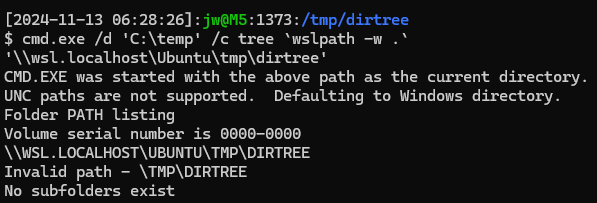
Unfortunately, that doesn’t seem to work.
Instead, we can set the current working directory to a Windows file system temporarily while invoking cmd.exe and then reset it afterwards. This is easy enough if we can be confident that /mnt/c (C:) exists, which is likely if the machine is running. We also need to pass the Windows path to tree.
(lwd=$(pwd); cd /mnt/c; cmd.exe /c tree "$(wslpath -w "$lwd")" ; cd "$lwd")
Nope. To deal with this, we can mount a drive:
net.exe use T: '\\wsl.localhost\Ubuntu'
sudo mkdir /mnt/t
sudo mount -t drvfs t: /mnt/t
cd /mnt/t/tmp/dirtree
cmd.exe /c tree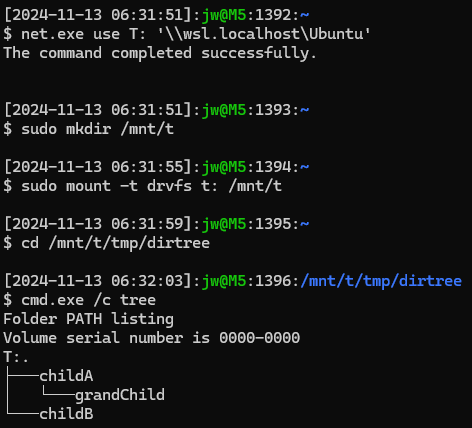
OK, that works. But…
cmd.exe /c tree | batcat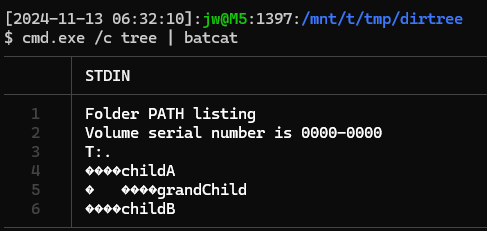
Luckily, cmd.exe command has /a and /u options for Unicode and ASCII! Bash should support one of those, right?

Unfortunately, who knows. Luckily, ChatGPT knew the answer.
cmd.exe /c tree | iconv -f CP850 -t UTF-8 | batcat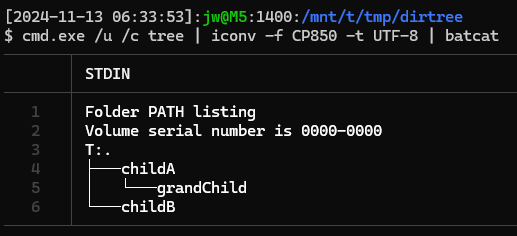
A couple of issues: we must mount a drive (for tree) and change the current working directory to the Windows drive that represents the WSL file system (for cmd.exe). We might just have to change the current working directory to a Windows file system before invoking commands that don’t depend on a Windows drive letter.
Remember to release any handles on the file system and clean up.
cd
sudo umount /mnt/t
sudo rmdir /mnt/t
net.exe use T: /delete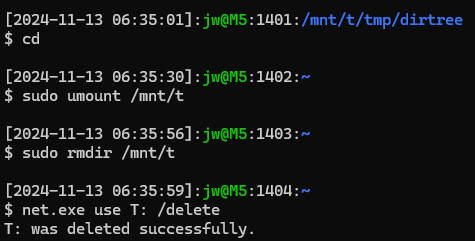
 wslguy.net