
This blog post describes my experiences ripping CDs to .flac files in late 2024. I had a relatively large collection of music compact discs (CDs) before I inherited at least three times as much from some relatives. I decided to digitize it to .flac (lossless but large) and to convert those files to .mp3 when appropriate.
There may be better ways, but I used the old Windows Media Player. In addition to selecting .flac, I configure Windows Media Player to eject the CD after recording, which reminds me to insert a new CD, but I expect could result in missing some errors. I have too many CDs to really care.
I faced a few issues with Windows Media Player, partly because I used two different machines and three different CD drives.
On one machine, I had to run Windows Media Player as a Windows administrator for it to recognize the CD drive. Sometime later, that changed, and I did not have to use Windows administrator privileges.
Occasionally, Media Player wouldn’t refresh the track list after receiving a new CD, or otherwise wouldn’t retrieve album metadata, requiring an application restart. I got the impression that if I didn’t notice, it may have overwritten files created during ripping of the previous album with the right metadata for that previous CD but the wrong audio binary from the current CD. It’s probably best practice to watch the track list refresh before pressing the RIP button.
In one case, if I used Remote Desktop to connect to the machine with Windows Media Player running, it would not retrieve media information for CDs.
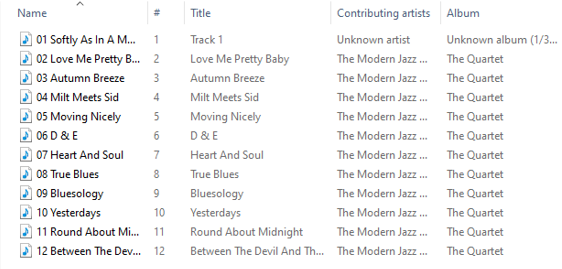
The option to rip CDs automatically after their insertion seemed to occasionally result in invalid album metadata with correct file names. For example, Title would be Track 1, Contributing Artists would be Unknown artist, and Album would be Unknown album (<datestamp>).
I use metaflac and lame. We can set the globstar option Bash to process all files in the current directory and all subdirectories, which can be more efficient than using the find command, especially with things like the -exec option, and allows us to avoid constructing a list of files before invoking a command.
shopt -s globstarChange to the directory that contains the artists. Now we can easily and efficiently use metaflac to process all the files for all artists and albums:
metaflac --show-tag=ALBUM **/*.flac | grep 'ALBUM=Unknown '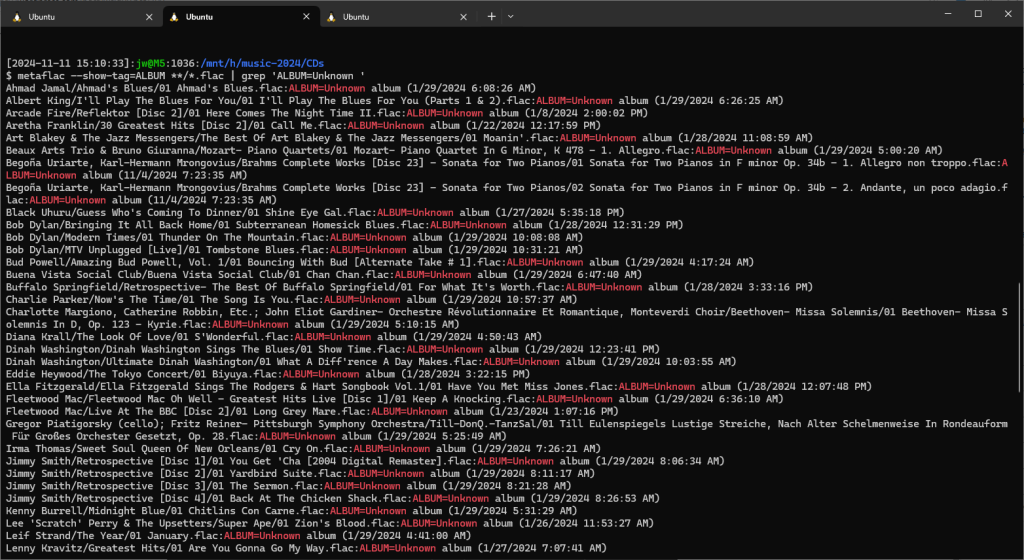
In some cases, such as when invoking multiple commands on a very large number of files, it may be more efficient use ls to create a list of files to process.
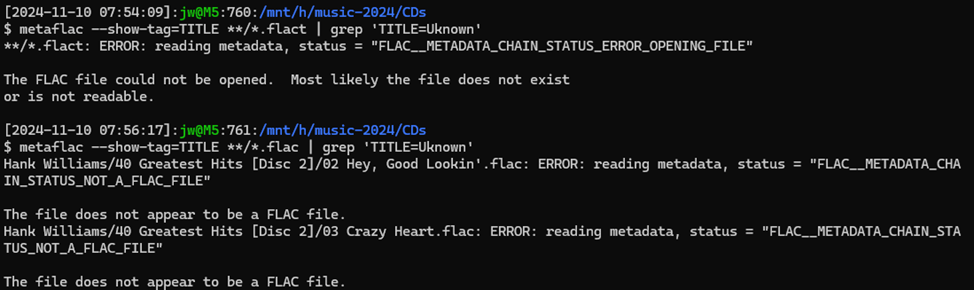
This also identified some corrupt files, likely due to flaws in the original media.
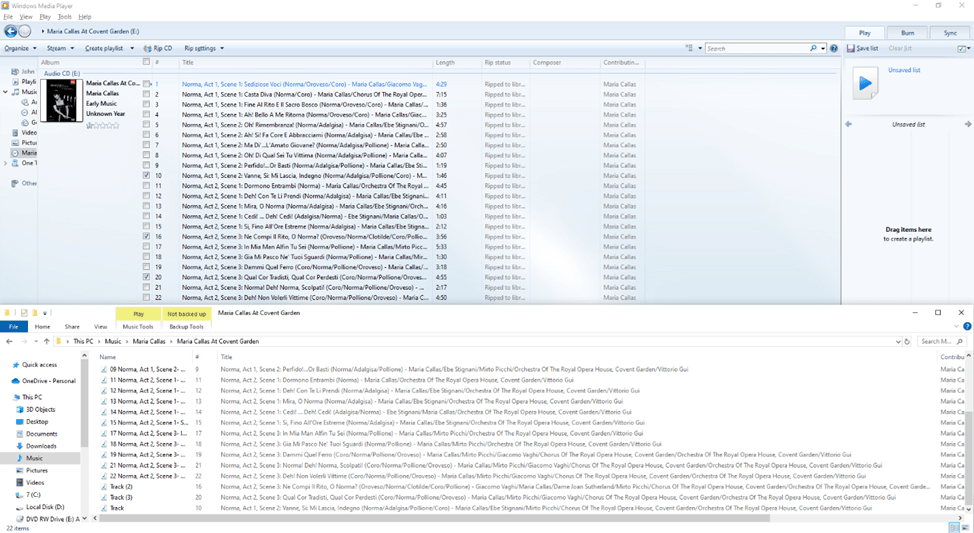
Media Player put tracks for some albums in the root Music folder or the artist rather than creating folders for the artist and album.
I noticed some files named “Track…”, which seems to happen for items with very long names or maybe paths (which can also be a problem when moving or copying the files to a longer path, and even the recycle bin does not support these long paths).
To find these:
ls -l **/Track*.flacTo find files that don’t seem to match the standard artist/album folder naming convention:
ls -1 **/*.flac | grep -Ev '^/[^/]+/[^/].+\.flac'Maybe a script could correct these issues, such as by moving files, setting the file name to a substring of Title where appropriate, Title to the file name minus the .flac extension, Album to the name of its parent folder, and Artists to blank or the name of the parent of the album folder, but metadata for the track would still be invalid. I chose to address these issues manually.
So, it was a relatively tedious process:
- Insert CD
- Wait for track list to refresh
- Click Rip CD
- Wait for CD to eject
In a Bash shell with the current working directory set to the Windows Media Player music library path, the following command lists the top-level folders that mostly represent artists, minus some unfortunate quote characters:
ls -1 | tr -d "'"To copy a list of all tracks into the Windows clipboard:
ls -l **/**.flac | clip.exeNotice that’s a one (-1), not an L (-l).
To get a list of albums:
find . -type d -print | grep -E '^[^/]+/[^/]+$'It might be interesting to investigate zero-byte files and empty subdirectories. I found very few, mostly for missing media:
find . -emptyWe can also check for duplicate files:
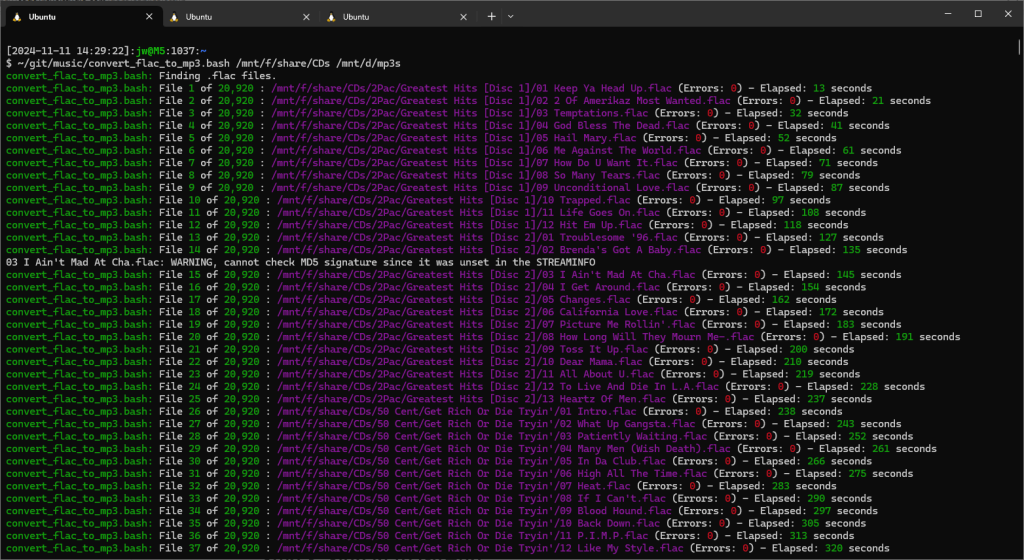
~/.cargo/bin/ddh -d /mnt/h/music-2024/CDs -v all -f json -o /tmp/dupes.jsonI use the following script to convert the .flac files to .mp3 files:
I ignore some issues:
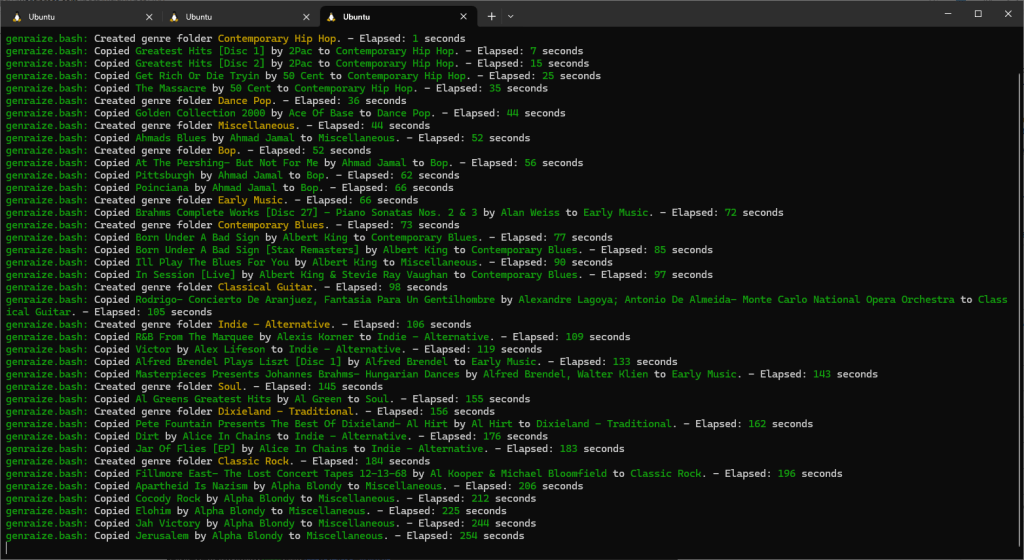
The following script copies albums to insert a top-level directory structure to separate artists by genre:
Then, to write a friendly tree of albums by artist by genre, in genres folder:
cmd.exe /c tree | clip.exe ; powershell.exe -Command "Add-Type -AssemblyName System.Windows.Forms; [Console]::OutputEncoding = [Text.Encoding]::UTF8; [System.Windows.Forms.Clipboard]::GetText()" | tail +4 | batcat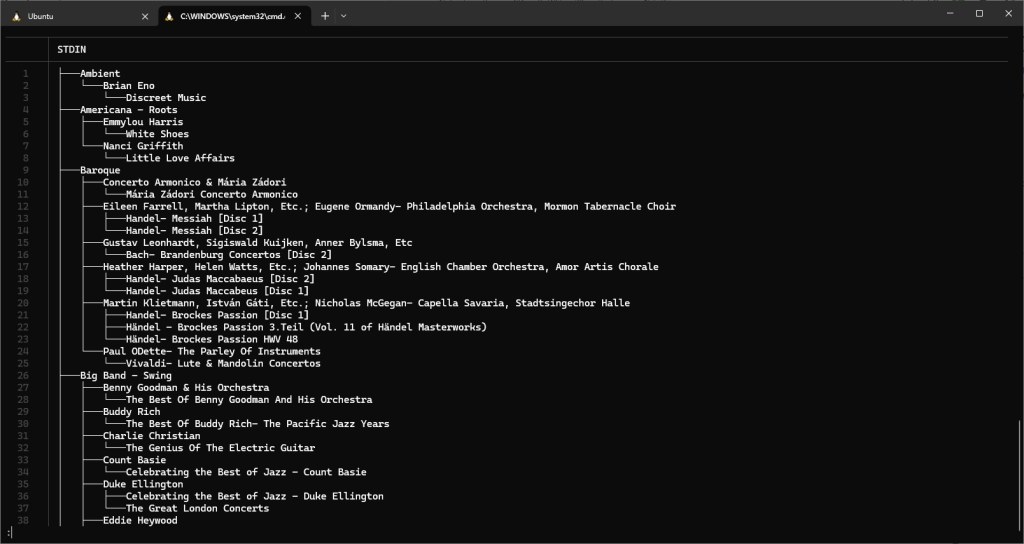
 wslguy.net