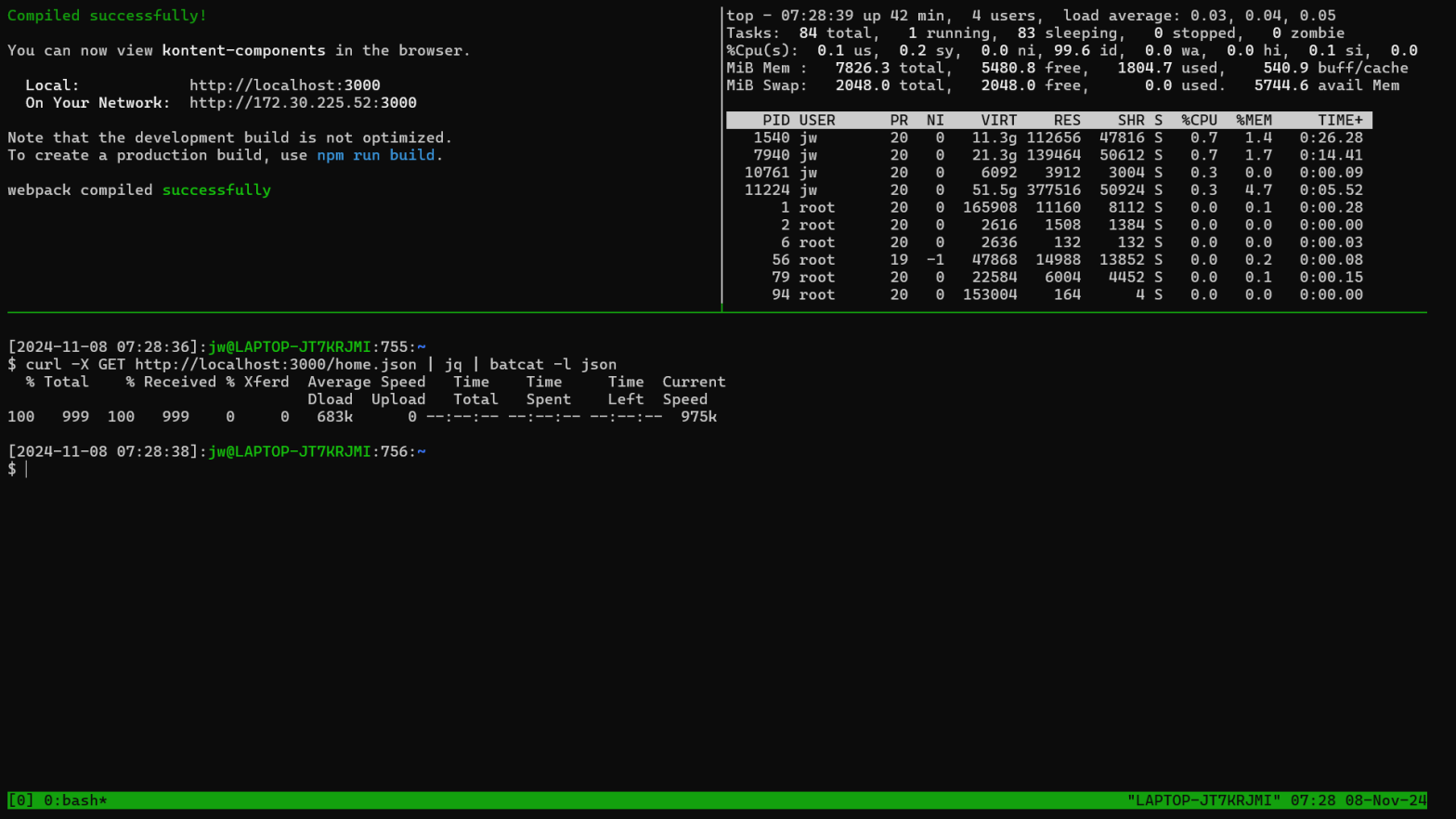
This blog post introduces tmux, which is a terminal multiplexer for multiple command line shells in different windowpanes within a single operating system window.
The video associated with this post demonstrates monitoring the output from a server application in one pane and resource utilization in another pane while allowing the developer to invoke commands in a third pane. This simply demonstrates capabilities; think about tmux in the context of multiple monitors with much greater resolution.
Start by running tmux, which effectively runs bash again within the current shell:
tmuxTo use tmux, press Ctrl+b and then a command code.
To split the window into two horizontal panes, effectively running bash again, press Ctrl+b, release, and press the quotes key (“):
- Ctrl+b, “
To split the top pane vertically, effectively running bash again, ensure that you have selected the top pane:
- Ctrl+b,<arrows>
And then split it:
- Ctrl+b, %
To increase space allocated to the bottom pane, select pane and then:
- Ctrl+b, Ctrl+<arrows>
Because tmux is a fullscreen application supporting multiple shells, each with its own output, you cannot use Windows Terminal to scroll through shell history. Instead, use tmux copy mode:
- Ctrl+b, [, <arrows>, <ESC>
 wslguy.net