Replicated with enhancements from the following with hopes of improving findability and through search engines:
TL;DR: Windows text files use \r\n (CRLF: carriage return, linefeed) for line termination; Unix text files use just \n. Edit the file and change the line terminators.
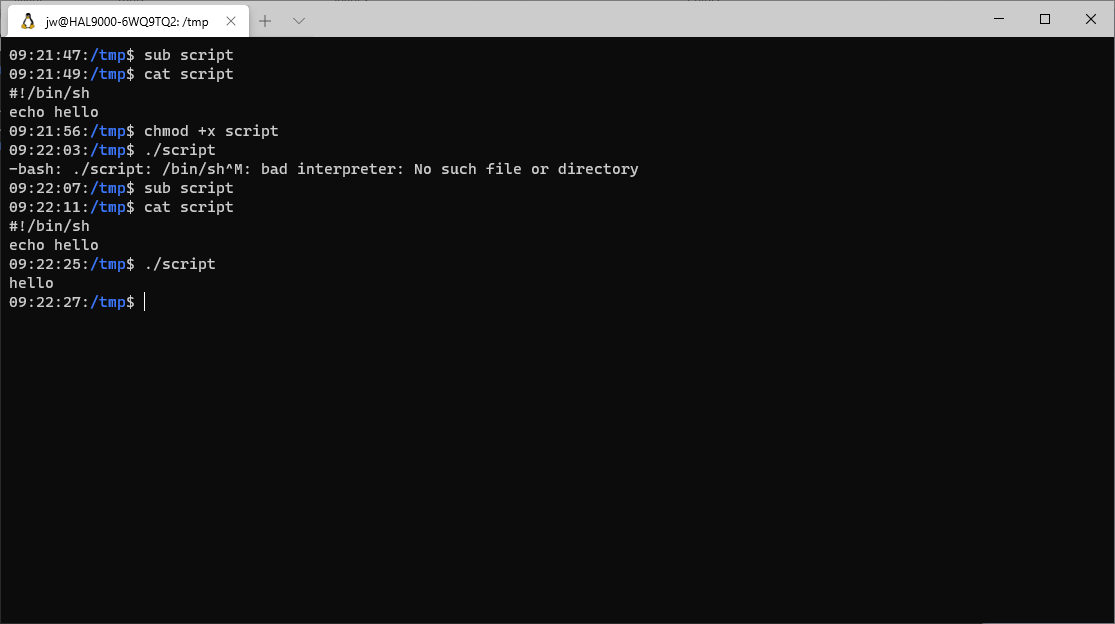
Using Windows Subsystem for Linux (WSL), you may encounter the following error if you try to invoke a script written with a Windows text editor:
-bash: <yourscript>: /bin/sh^M: bad interpreter: No such file or directoryThe issue is with the difference between Unix and Windows line terminators. Will our far distant descendants still be hassled with conflicting slashes, conflicting line terminators, space and other “special” character escaping requirements, multiple types and levels of nesting of quoting, and other legacies from previous centuries? Can we really not automate solutions to any of these, especially something like supporting windows line terminators in shell scripts on Windows Subsystem for Linux?
You can use tools such as dos2unix to update the file or use a text editor. For example, with the file open in Sublime Text Editor, click the View menu, select Line Endings, and select Unix, and then save the file. You might want to click the Preferences menu, click settings, and set these on the right (user overrides) side:
"default_line_ending": "unix",While configuring Sublime, you might as well replace notepad.exe (https://github.com/grumpydev/Sublime-Notepad-Replacement/blob/master/zip/SublimeLauncher.zip) and set these (require save before exit, convert tabs to spaces):
"hot_exit": false,
"detect_indentation": true,
"tab_size": 4,
"translate_tabs_to_spaces": true,
Restart Sublime.
Untested suggestions from ChatGPT for Visual Studio Code:
Viewing the Current Line Ending:
- At the bottom-right corner of the VS Code window, you’ll see the text LF or CRLF. Click on it to switch between the two.
Setting the Default Line Ending:
- Open the Command Palette by pressing Ctrl+Shift+P (or Cmd+Shift+P on macOS).
- Type Change End of Line Sequence.
- Choose either LF for Unix/Linux line endings or CRLF for Windows line endings.
Configuring the Default for New Files:
- Go to File > Preferences > Settings (or press Ctrl+,).
- Search for files.eol in the search bar. You will see an option where you can set files.eol to either \n for LF or \r\n for CRLF. If you leave it as auto, VS Code will choose the line ending based on the operating system (CRLF for Windows, LF for Unix/Linux).
 wslguy.net